ESPc Logger help
Record. Connect.
Download.
The essentials for using your logger. Keep the full manual nearby for display options and advanced settings.
Device starts with GPS mode.
Use Info view to check the GPS receiver type and configured recording rate. The Speed view shows your speed; Stats view becomes useful once there are results to show.
Use the button to change views. Keep GPS mode for recording and switch to WiFi mode when you want to retrieve files or change settings.
Display views in the manual ↗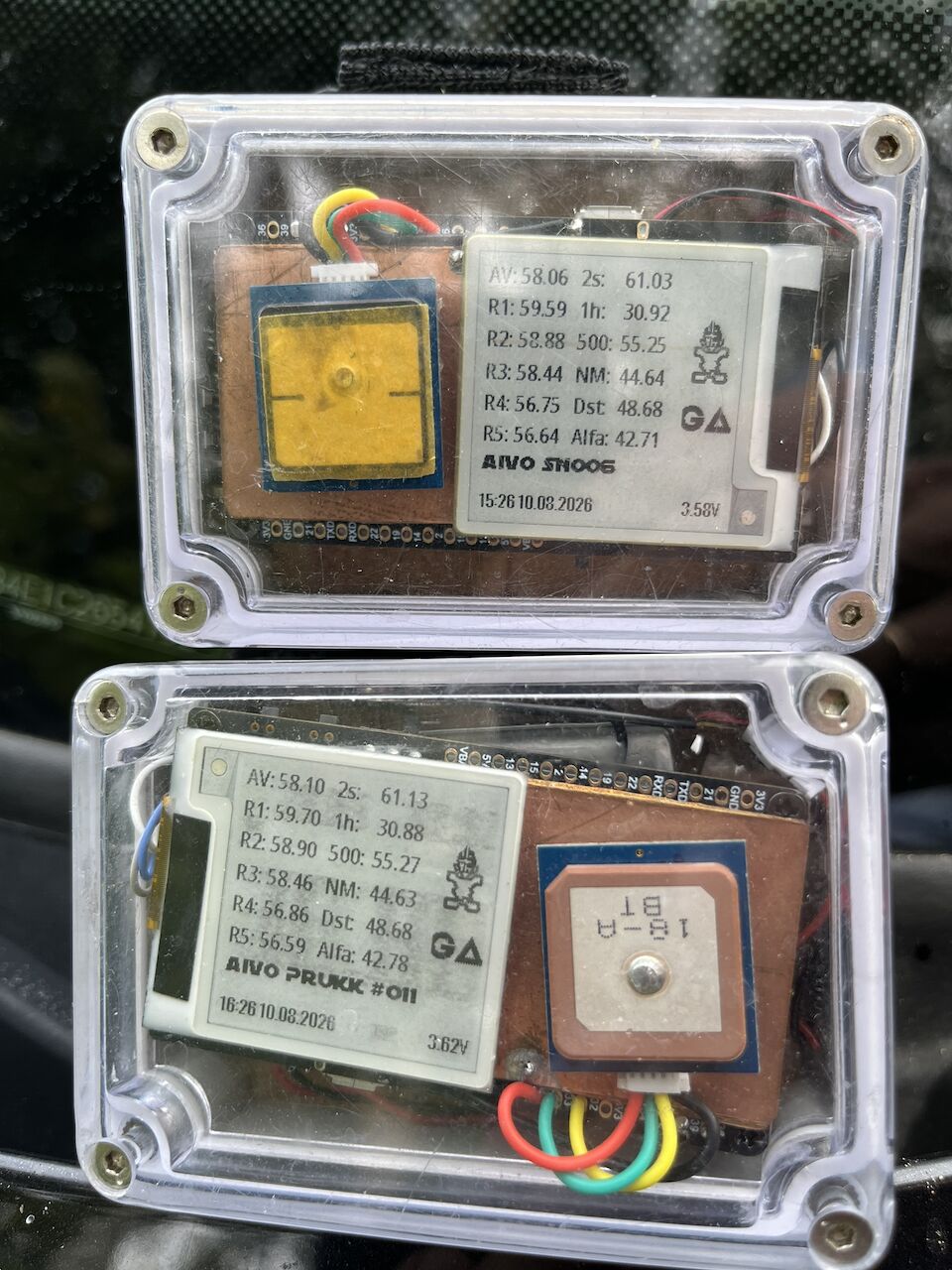
Race start mode. Step by step.
Use Start mode for a countdown and GPS approach guidance. It is available in builds with GPS logging enabled.
- Open Start mode. Double-click through the GPS views while in GPS mode and stationary. While moving, double-click switches between Speed screen and Start screen.
- Choose the countdown. While the timer is off, hold about 0.7 seconds and release before 2 seconds. This cycles 2, 5, 4, 3 and 1 minute.
- Set the line. With a usable GPS fix, hold about 2 seconds at the pin end until PIN SET, then release. Repeat at the committee-boat end for BOAT SET. Release before 4 seconds to avoid changing to WiFi. The ends must be 5–1000 m apart.
- Start and sync. One click starts the timer. Another click during the initial 5-second undo window cancels it; later clicks sync to a minute signal. For example, 2:35 becomes 2:00 and 1:58 becomes 2:00. After the start, one click resets the timer.
Read the approach display
The large number is seconds early or late, not speed. A negative value means time to burn at the current approach speed; a positive value means late arrival.
LINE shows metres to the line segment; PIN / BOAT shows distance to an endpoint. VMG is speed toward the nearest point. Bottom left is the countdown; bottom right is the approach speed needed to arrive at the start.
SET PIN / BOAT: capture the next end. NO GPS: no usable fix. FAR / KM: the saved line is outside range. OCS: the GPS solution is on the stored course side. A -- delta means no usable arrival estimate.
The line and preset are saved; a running timer does not survive reboot. Switching to Speed keeps the countdown running. GPS is needed for line guidance, while the timer can run without it.
See the full manual for the complete race-start display reference.
Connect over WiFi.
- To switch WiFi mode from GPS mode, hold the button for about 4 seconds, then release. Check the network name and device address on the display.
- On your phone or computer, join the network shown by the logger. In access-point mode, use the configured AP password.
- Type the displayed address into your browser, for example
http://espabcd.local/. Use your logger’s actual name, not this example. - Button double click swiches between AP and Station mode.
Access point (AP)
The logger default creates its own WiFi network. Join it directly; internet access is not needed to open the device interface.
Home network (station)
The logger joins a configured WiFi network. Put your phone or computer on the same network to reach it.
Download your logs.
In the logger’s browser interface, open Files and select a log to download. Keep a copy on your phone or computer for analysis.
Available log formats depend on the firmware and configuration. Choose them under Config.
For tracks, speed metrics and comparisons, open the files in GPS Analyzer. Its mobile app can also download directly from the logger over WiFi.
Change a setting.
Open Config in the connected logger’s browser interface. Choose the GPS, display or WiFi setting you want to change. Text fields save when you press Enter; selections save when changed.
Configuration details in the manual ↗One button. The essentials.
Actions depend on the active screen. Race start has its own controls.
| Press | Action |
|---|---|
| 1 click | Change the active Speed or Stats view. |
| 2 clicks | Cycle GPS screens, or change AP / station / combined WiFi mode. |
| 3 clicks | In Settings, cycle the value. In other ordinary views, rotate the display. |
| 4 clicks | Run a full e-paper refresh. |
| Hold about 2 s | In Settings, change group; at an update prompt, confirm. In ordinary views, shut down. |
| Hold about 4 s | Release to switch between GPS and WiFi. |
The default mode-change and restart holds are 4 and 7 seconds. Timings can vary by build. Follow the device display.
Full button reference ↗Update over WiFi.
GPS Analyzer is the main mobile app for managing your logger: logs, settings and firmware. Connect to the logger over WiFi, open its page in the app and select FW. When a release is available, choose Download & Install and confirm installation after the download. Keep the phone connected until the logger restarts. Fetching firmware needs internet access; installation uses the local WiFi connection.
Prefer the browser? Upload a firmware file directly:
Download a .bin build for your hardware from the firmware releases. Connect to the logger over WiFi, open Update, choose the file and select Upload. Let the device finish and restart. In GPS Analyzer firmware update file compatible for device will be automatically selected.
With update_enabled enabled in the fw_update group and an internet-connected station network, supported builds can offer a newer release on the display. A roughly 2-second hold confirms the selected update or postponement option.
A little help connecting.
The device page will not open.
Check that the logger is in WiFi mode and that your phone or computer is on its AP network, or the same home network in station mode. Enter the address from the display directly in the browser’s address bar, including http://.
The phone says there is no internet.
A direct AP connection is a local network. Stay connected to it to download files or change settings; those tasks do not need internet access.
Which firmware channel should I use?
Choose stable for everyday use. Preview builds are for trying newer changes. Always check that the build matches your device hardware.
Keep the full guide.
The English and Estonian v2 manuals include display examples, button controls and advanced settings. Interface names are Files, Config and Update.